How It Works
1. Subscribe
Pick a plan and complete checkout. Your order goes into our queue immediately.
2. Get your credentials
Once your order is confirmed, we'll send your login details via email or Telegram, usually within a short wait.
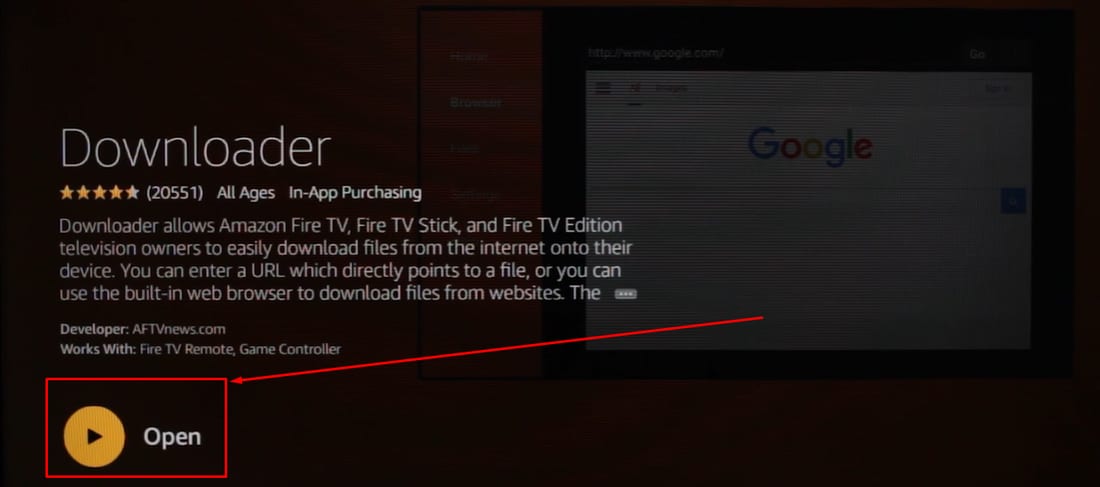
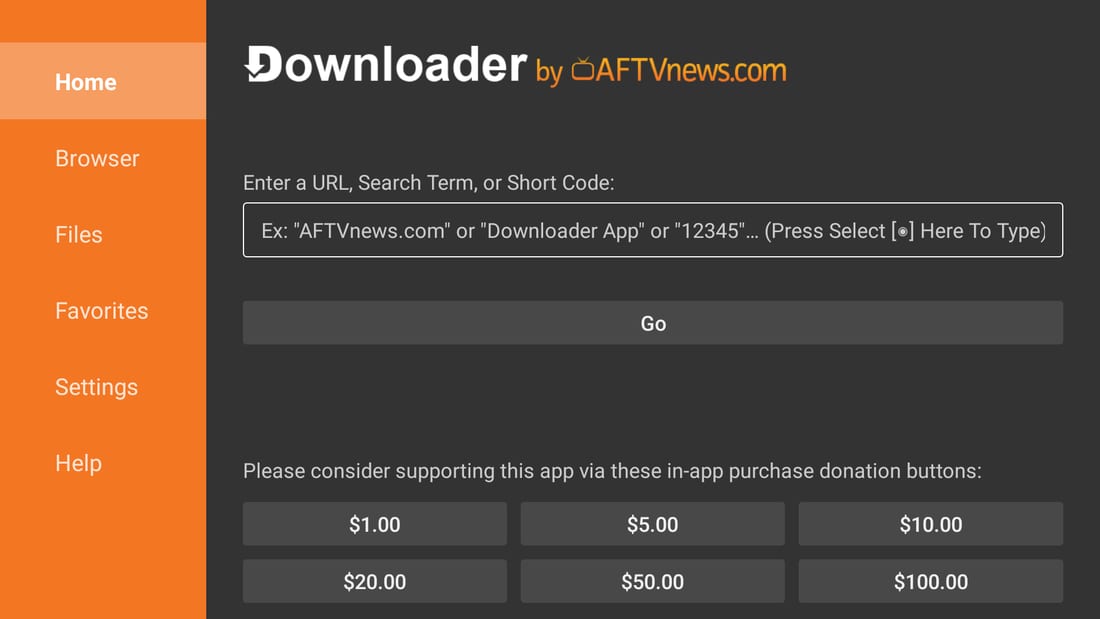
3. Install a player app
Install a player: TiviMate (Fire TV, Android), IPTV Smarters Pro (iPhone, Smart TV) or VLC (computer). TiviMate's premium features are unlocked for you at no extra cost.
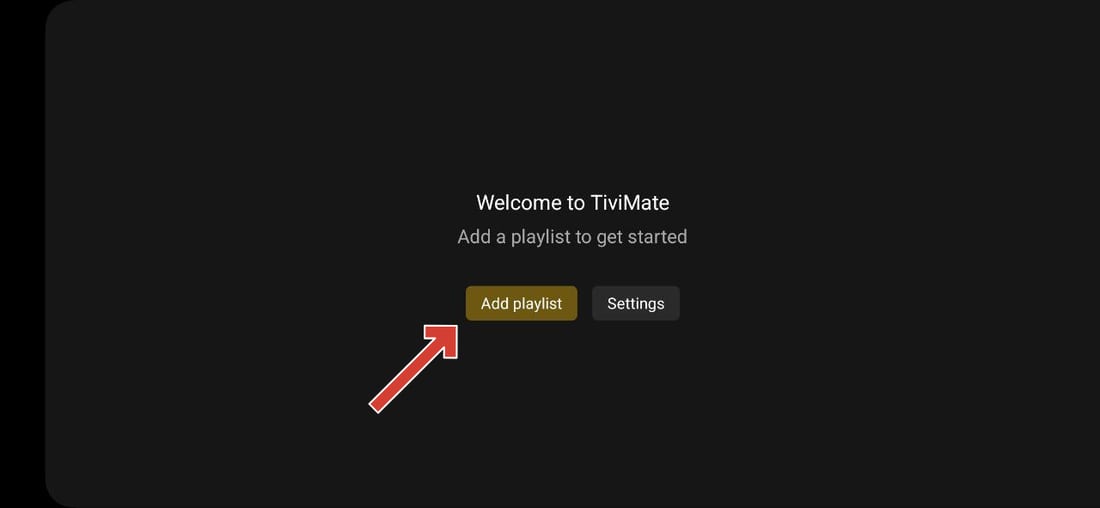
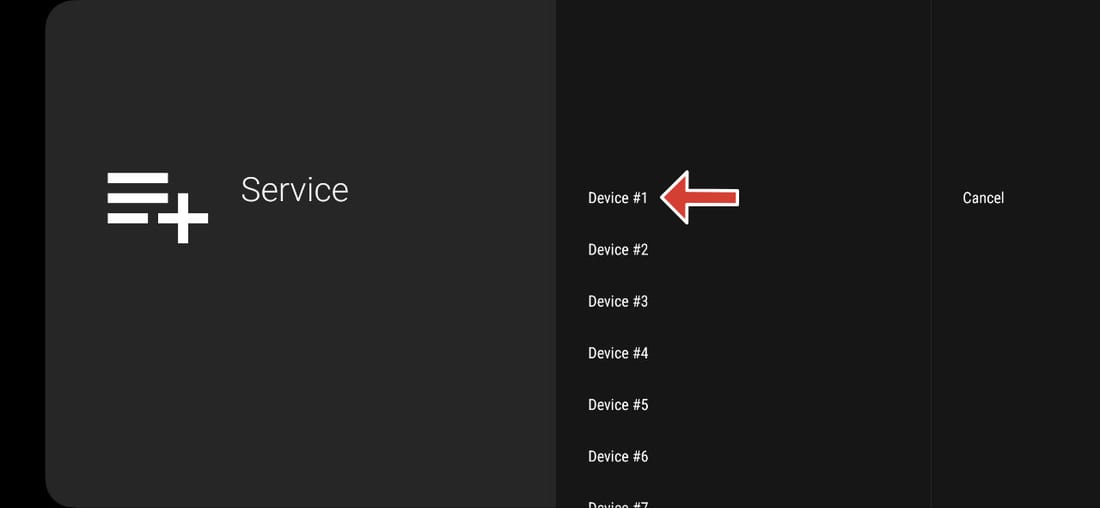
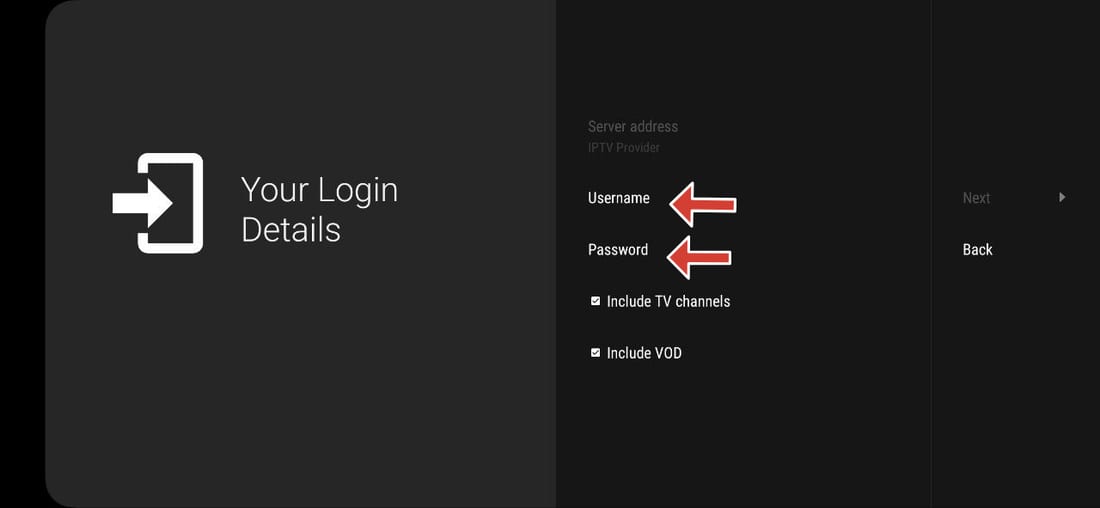
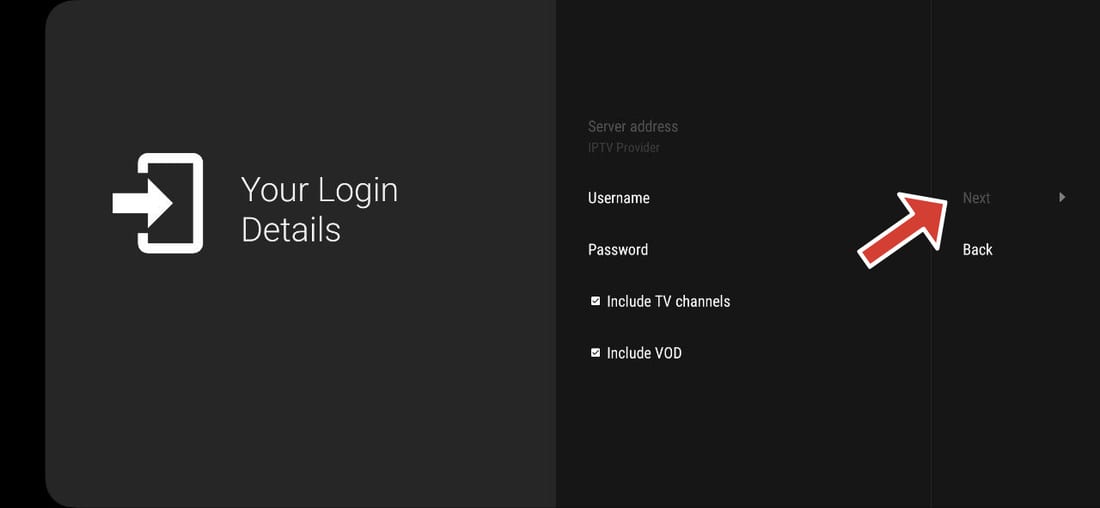
4. Enter your details
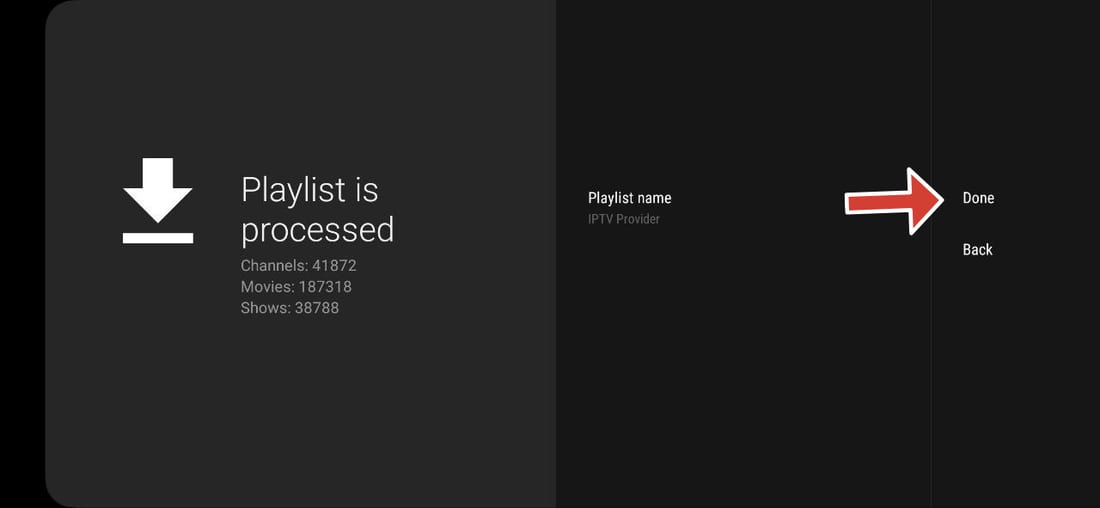
Add your username and password (or M3U URL) into the app, and your channels & VOD library load instantly.
5. Watch
Enjoy live TV, sports, and on-demand content on up to 3 devices at once.
Setup Guides for Every Device
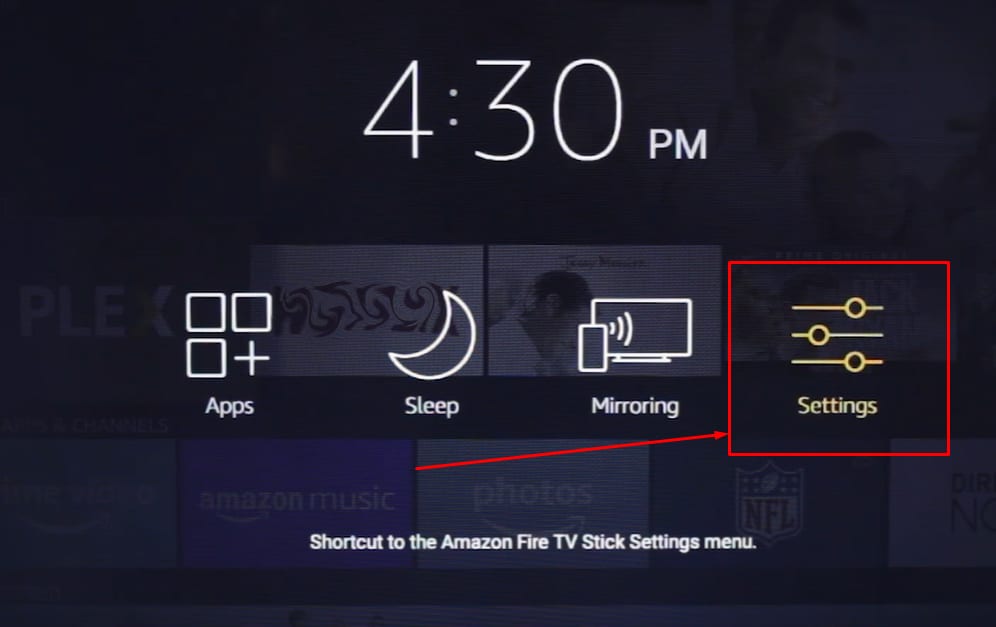
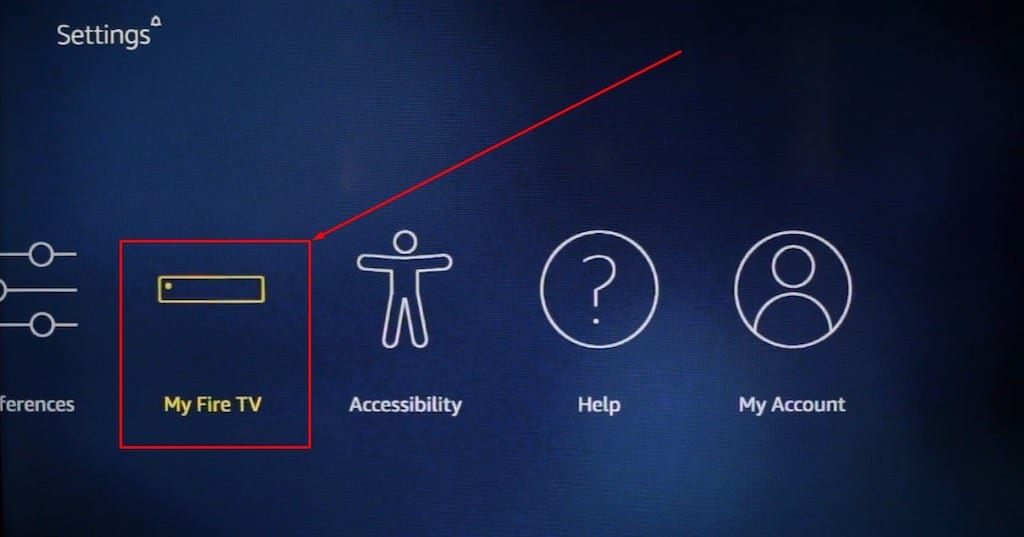
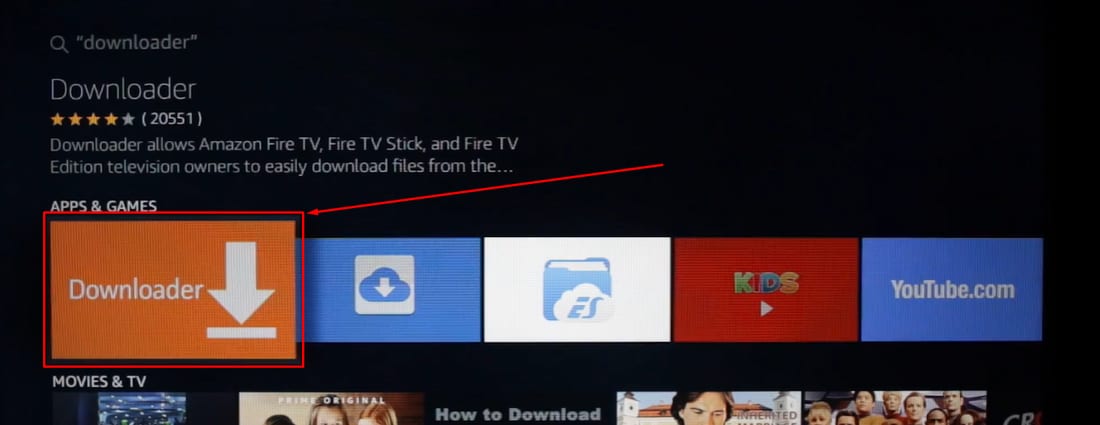
Pick your device, choose an app, and follow the steps. Most setups take under three minutes — the same StratosPlay login works on every device you own.
Check your Order Status page or your activation email for your Username, Password and Server URL.
Basic Navigation — Once You're Connected
Every app looks a little different, but these basics work almost everywhere:
Browsing channels
Use the remote's arrow keys (or swipe on touch devices) to move through the channel list, then press OK/select to tune in.
Switching categories
Channels are grouped into categories (Sports, News, Movies, by country, etc.) — look for a menu or sidebar to jump between them.
Using the TV Guide (EPG)
Press the Guide/EPG button, or find it in the app's menu, to see what's on now and later — tap a program to switch straight to it.
Saving favorites
Most apps let you mark channels as favorites (usually a heart or star icon, or a long-press) so you can find them quickly later.
Finding Movies & Series
Look for a separate "Movies" or "VOD" section in the app's main menu — it's separate from the Live TV channel list.
Searching
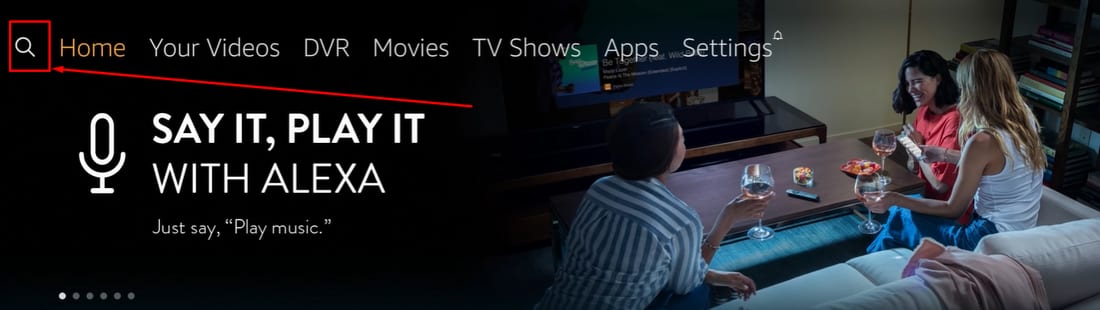
Use the app's search icon to jump straight to a channel or title instead of scrolling through everything.